 PostStride
From your first sign-in to your next post.
1. Open your workspace
PostStride is for creators and small businesses preparing original content for accounts they control. Workspace access is currently by invitation. Request access from support@poststride.app if you do not have an account.
If you have been given a workspace login, open Sign in and enter that account’s email address and password. Use Continue with Google only if your PostStride account was set up with that Google identity. Signing into PostStride does not connect a social account automatically.
Our Privacy Policy and Terms of Service are available before you sign in. Do not send passwords or login codes to support.
2. Connect a destination in Accounts
Open Accounts and choose Connect beside the platform you want to use. Authorize access on the platform’s own website, then return to PostStride. Check the displayed account name and handle before preparing a post. A new workspace can start with no accounts connected.
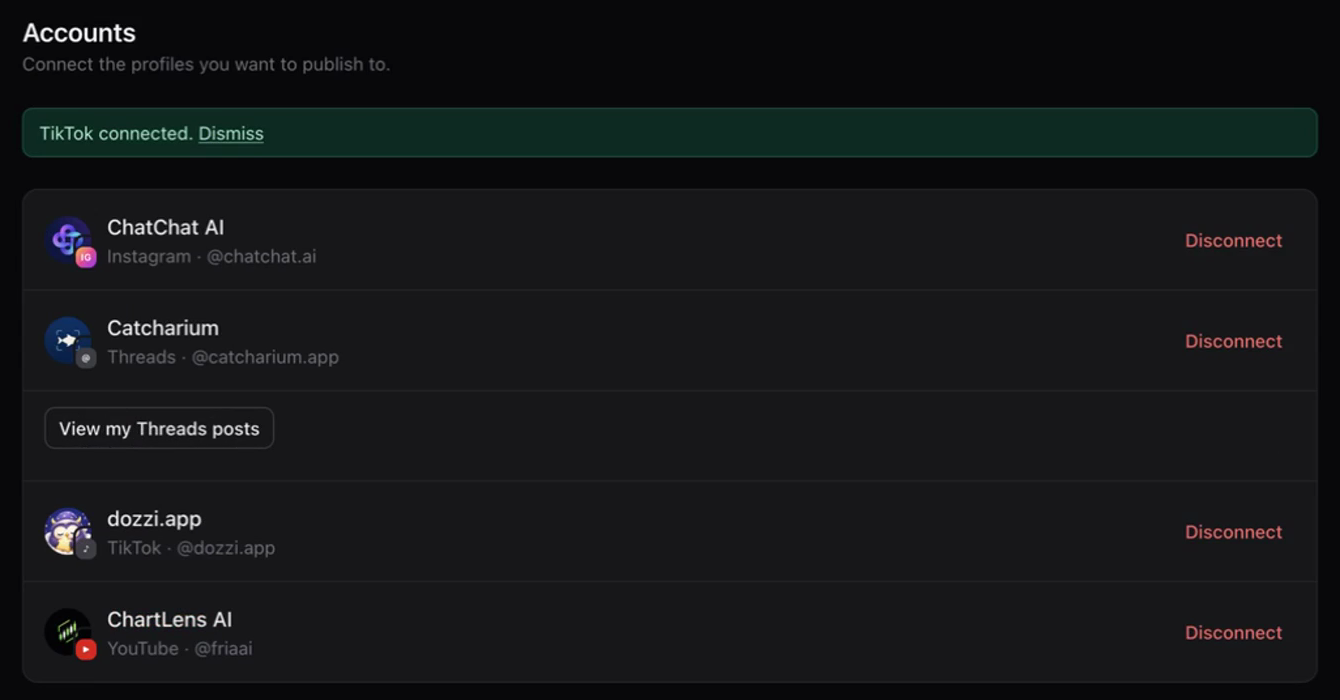
- Instagram: a Business or Creator account is required.
- Threads: authorize the profile you want to publish from.
- YouTube: connect your channel separately from Google sign-in. Current uploads through PostStride arrive as private videos for review in YouTube Studio.
- TikTok: currently available to designated test accounts while production access is pending. A PostStride login alone does not enable every TikTok account. Read the TikTok inbox guide for the supported flow.
3. Prepare and review a post
- Choose New post, then select the connected destination or destinations you intend to use.
- Add your caption and use Add media to choose photos or a video you have the right to share. Wait for the upload to finish.
- Review the account name, media preview and any platform-specific options or validation messages.
- Choose Post now or Schedule and your intended time. Check the selected destinations before using the form’s confirmation button.
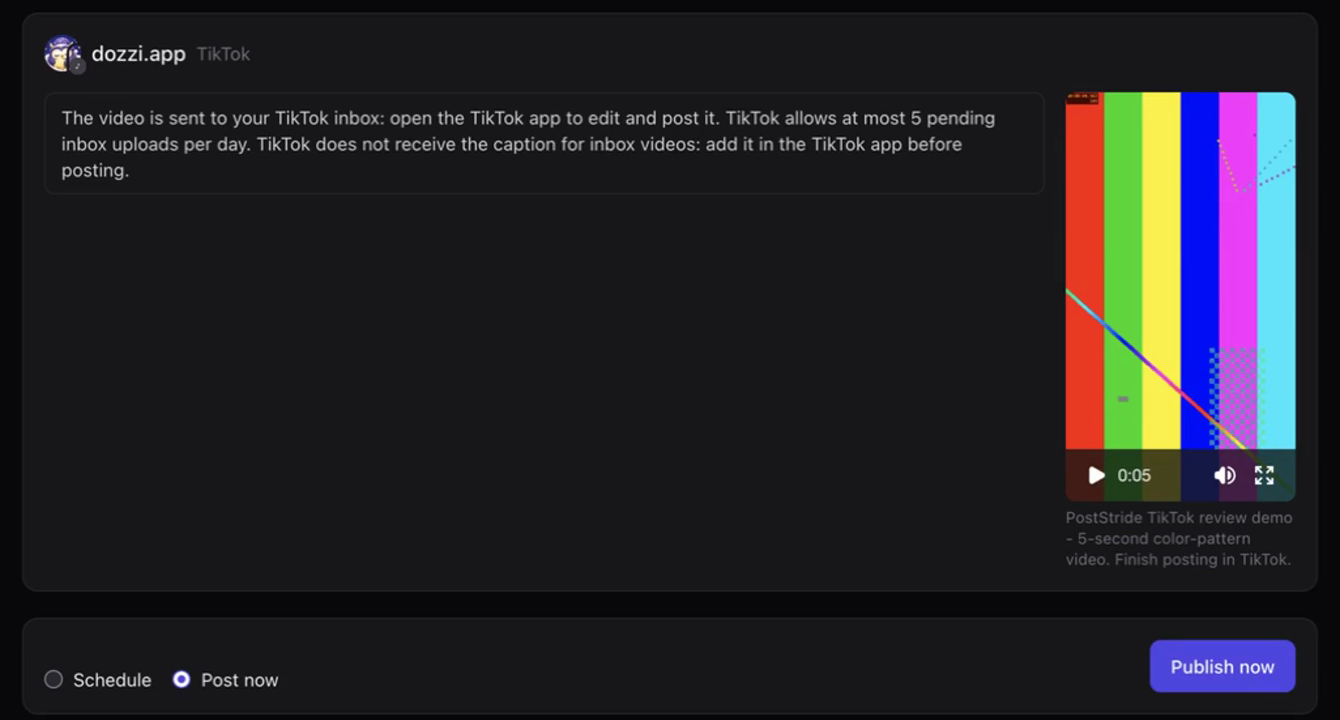
For TikTok inbox videos, the caption in PostStride stays with your workspace record. Add the final caption in TikTok. Direct posting to TikTok is currently unavailable.
4. Follow the result in Queue
Open Queue to see upcoming tasks, completed deliveries and items needing attention. Scheduled work runs in the background; you do not need to keep PostStride open. Processing time, account access and platform limits can affect delivery.
- Upcoming: inspect scheduled work and its selected delivery time.
- Published: inspect completed tasks and each destination’s result. TikTok’s Sent to inbox and YouTube’s Uploaded do not by themselves mean the content is public.
- Needs attention: read the error before acting. When the outcome needs checking, inspect the destination platform before creating another upload.
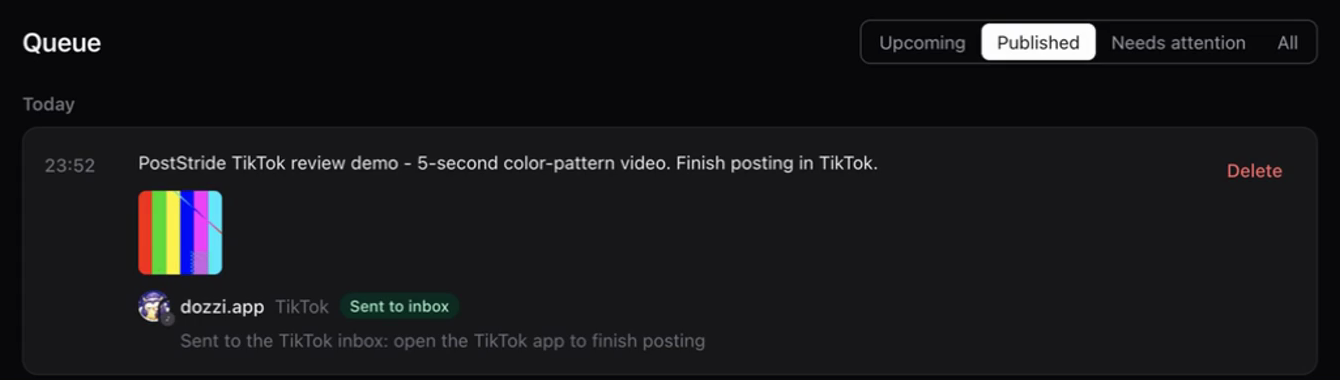
For TikTok, open the same account’s Inbox, find the upload notification and continue to the editing screen. Review the content and final settings there before deciding whether to publish.
Manage access and get help
Use Accounts → Disconnect to remove a saved connection and stop its pending deliveries. For TikTok, also remove PostStride in TikTok’s permission settings when you want to revoke the platform authorization. Disconnecting does not remove content already posted on the platform.
Read our data-deletion instructions for deleting your PostStride account and following cleanup. For sign-in or delivery help, contact support@poststride.app with the approximate time and the message you see. Exclude passwords, authorization codes and access tokens.
PostStride is operated by LLAMA AI LTD.
Explore the product · TikTok inbox guide · Open your workspace